Export and check a game asset
Exporting a file is only the first step. Check that the receiving application gets the intended appearance, dimensions, hierarchy, and animation before handing the asset to someone else.
This walkthrough continues Animate a hinged door and uses the painting techniques from Texture a prop. You can use a static painted model instead and skip the animation checks. Screenshots show the Mac SwiftUI app v1.5.30, with the title bar cropped.
The example was checked through both the Swift and Rust exporters. Their base-color and metallic/roughness textures match pixel for pixel, and the exported hierarchy, dimensions, and animation samples agree. Download the checked painted-door GLB.
1. Prepare a recognizable surface detail
Open the completed hinged-door example. In Animation, return to frame 0 and close the timeline with the film button. Choose Paint in the bottom toolbar. If the Scene Outliner remains open, toggle its bottom-toolbar list-in-a-rectangle button off to reveal Paint controls.
- Choose Object paint scope, the cube in the floating palette.
- Choose Charcoal and click the door panel, avoiding the handle.
- Choose Brush scope, the pointed brush, and select Gold.
- Set Brush Size to 40 px, then draw an F on the panel with three continuous drags.
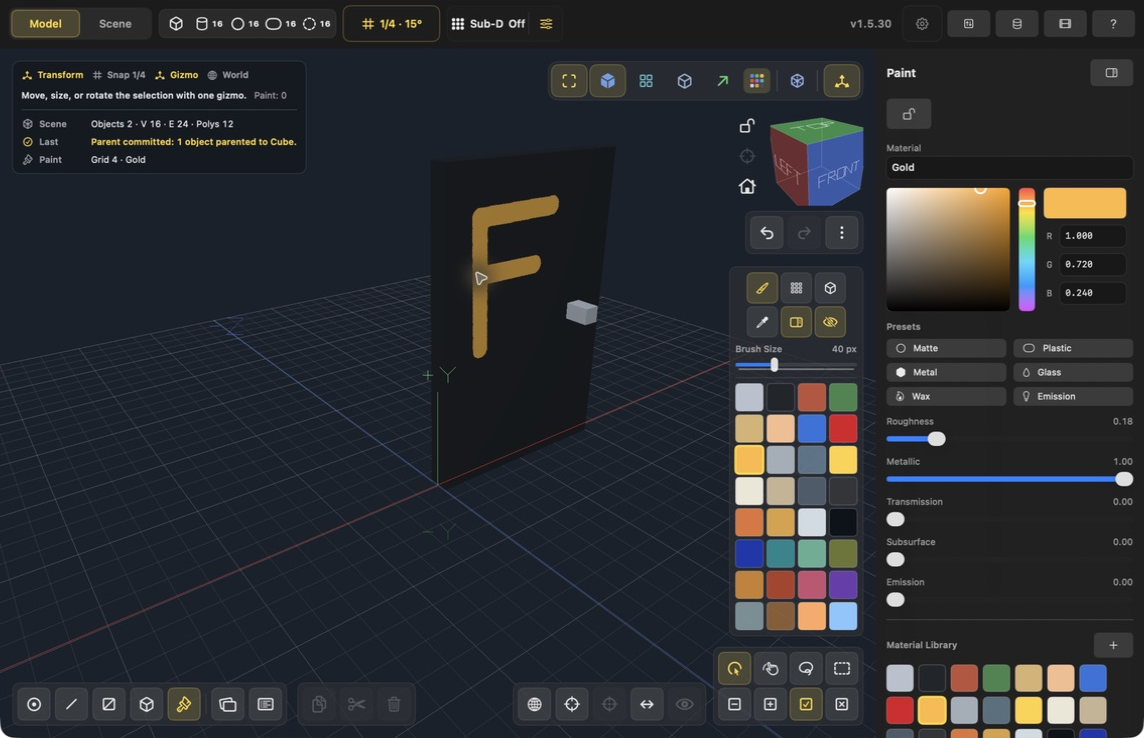
Keep a view like this for comparison. A distinctive mark is easier to check than a uniformly colored surface. For your own model, finish and inspect the UV layout before detailed painting; Texture a prop explains shape, overlap, and relative-size checks.
2. Set the intended physical size
Open Preferences with the gear in the top toolbar. Under Units, choose Meters for this example.
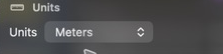
For a new current-version document with Project units set to Meters, the lesson's door is 2 m wide, 3 m high, and 0.2 m thick. Geometry stays in meters regardless of the display preference. The screenshot above predates the corrected unit workflow; Import and Export → Project units is the current control.
Changing from centimeters to meters does not make a current document 100 times larger. For an older model that was deliberately compensated, measure its current dimensions and use Transform → Detail → Scale factor = desired size ÷ current size, then Apply scale. Current unit/export guidance includes a fresh popover capture.
3. Check objects and motion
Reopen Animation using the film button. Select Door in the Outliner and check that Handle is indented underneath it. Keep both visible using their eye controls. Hide unrelated construction objects before export; selecting just the door is not a substitute for checking visibility.
Scrub to frames 0, 15, and 30. The expected Y rotations are 0°, −22.5°, and −45° with the lesson's Linear keys. The handle and the painted detail should follow the panel.
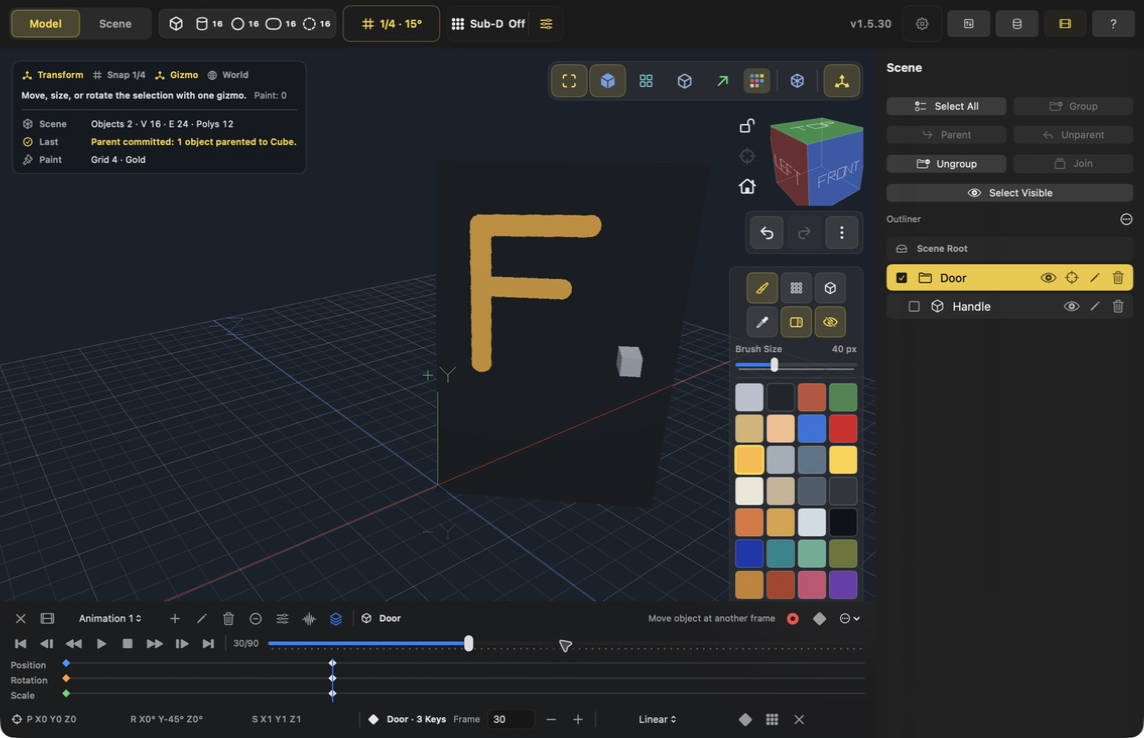
The example's 90-frame clip at 30 FPS opens over one second, then holds. That pause is part of the clip. Save the editable Forge document with File → Save before exporting so you retain the source project.
4. Export GLB
- Open Import and Export, the up/down-arrow button in the top toolbar.
- Choose Export GLB Scene.
- Choose a folder and enter a clear base name, such as painted-door. Check the final filename rather than adding the extension twice.
- Click Export in the save dialog.
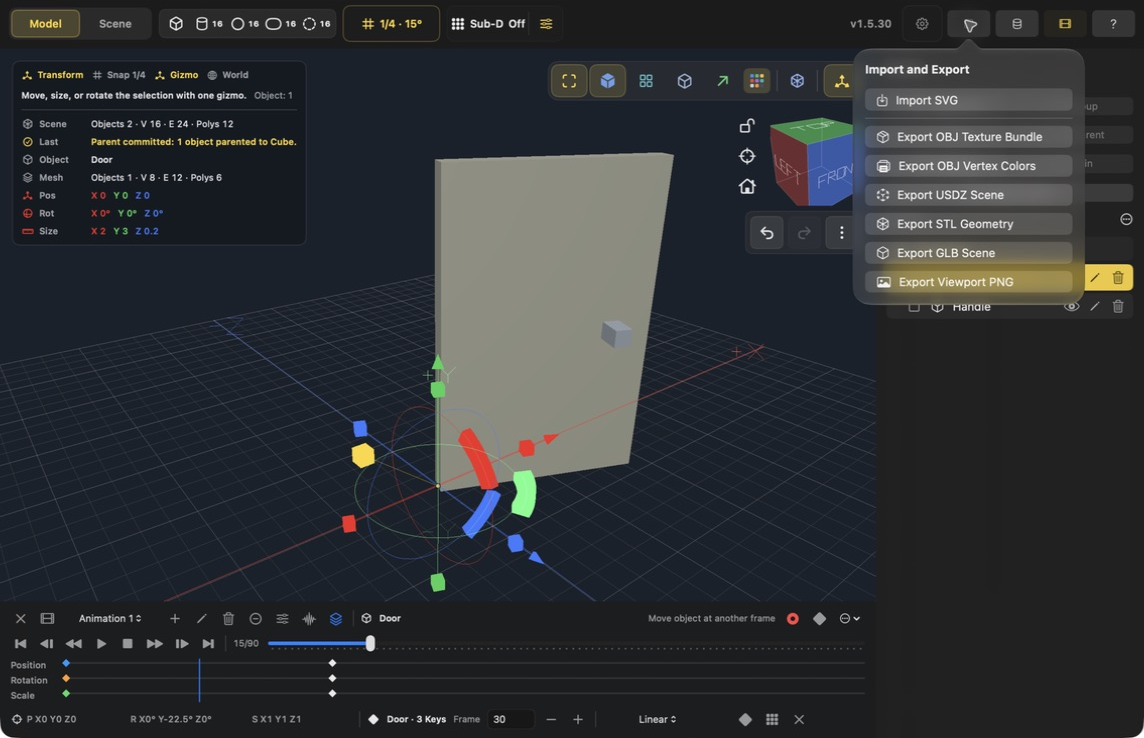
The format picker is shown on the unpainted hinge example; the same command exports the painted version.
GLB can contain geometry, textures, materials, hierarchy, and transform animation in one file. Export STL Geometry cannot carry the paint or animation. Export Viewport PNG produces a picture rather than an editable 3D asset.
5. Check the exported file in its destination
Import the GLB into the application that will use it. Start with its normal glTF import scale and inspect the resulting dimensions before changing settings. Exact import and playback controls depend on that application.
| Check | Expected result for this example | If it fails |
|---|---|---|
| Geometry | A panel plus a separate handle | Check object visibility and which file was imported. |
| Scale | Panel is 2 × 3 × 0.2 meters | Compare Forge Units with the destination's unit display and import scale. |
| Hierarchy | Handle is a child of Door | Check the imported node tree, not just the selection outline. |
| Base color | Charcoal panel and an intact gold F | Compare the exported texture and material assignment with Forge. Missing stroke detail is a failed appearance check. |
| Surface response | Gold marking responds as metallic; charcoal stays comparatively matte | Check material textures and destination lighting. A different environment can change highlights without changing the paint pattern. |
| Animation | Select Animation 1 and play: open, then hold | Check whether the importer enabled animation and whether the clip is selected. |
| Pivot | Hinge stays fixed; handle follows | Inspect hierarchy and motion, not only the static frame. |
Test the actual file you will deliver. A correct viewport in Forge does not prove that the exported texture or animation arrived correctly.
What the checked file contains
The generated GLB has door bounds of 2 × 3 × 0.2 meters, the hierarchy Door → Handle, and rotation samples matching frames 0, 15, and 30. It contains embedded PNG base-color and metallic/roughness textures.
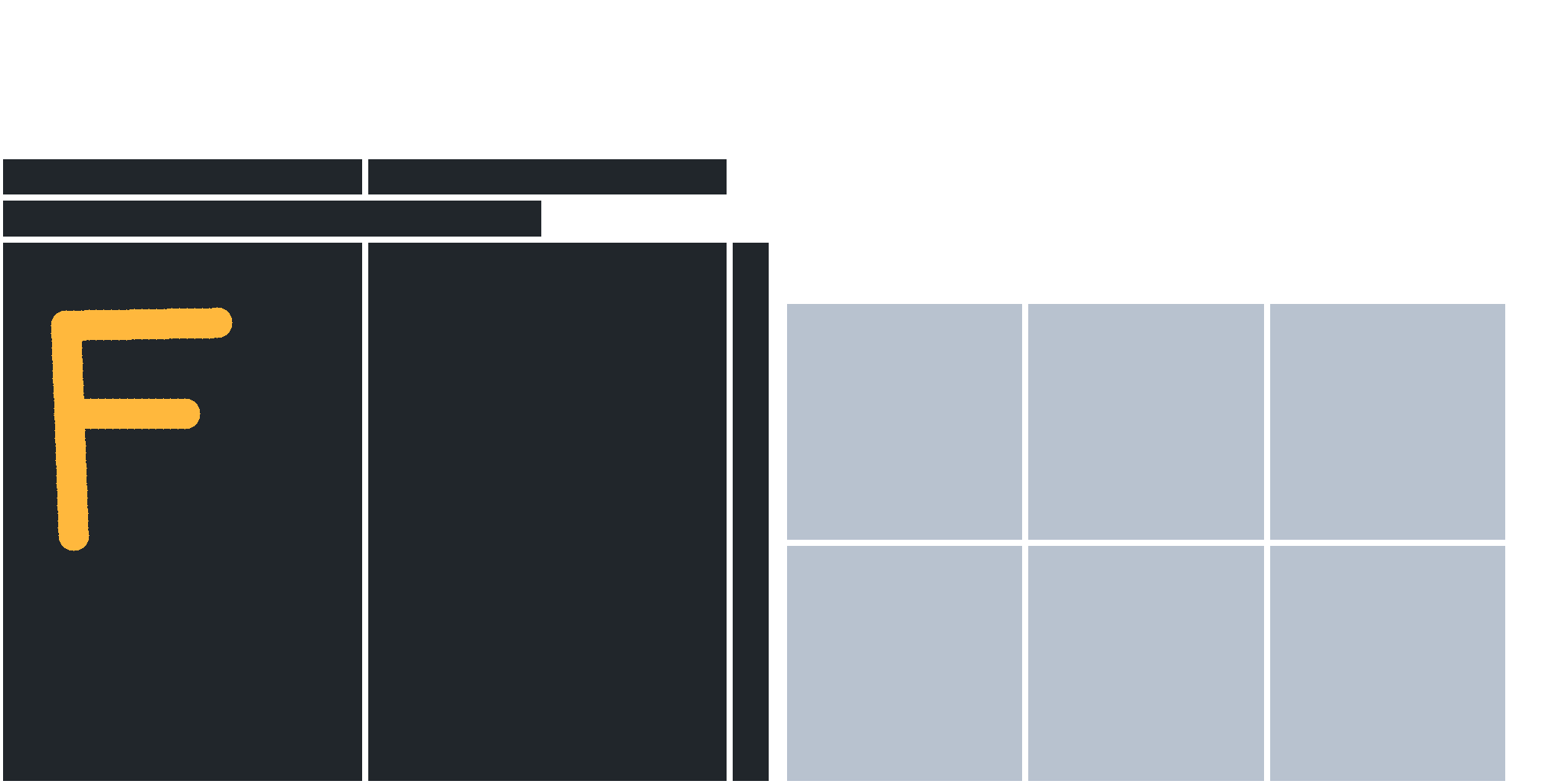
This is the actual exported texture. White space and rearranged islands are normal in an atlas. The continuous F is intact. Swift and Rust produced identical pixels in both exported textures.
Download the checked painted-door GLB, or use the unpainted hinge GLB for a simpler starting point. These checks inspect file contents; they do not claim playback was tested in a particular game engine.
During preparation, an earlier build lost the continuous stroke when the painted door shared a scene with an unpainted handle. The shared export path has been corrected in both versions. If an older build produces scattered patches instead of strokes, use a build containing that fix and export again.
Before handing off your own asset
Keep the editable source and the exact tested export together. Note the expected physical size, clip name, and intended material appearance. If the texture differs from the source, preserve both files and a comparison image so the problem can be reproduced. Do not fix a missing paint pattern by changing lighting or scale; those controls address different symptoms.
Return to Rendering and export for format choices, or Learn by example for the modeling and painting lessons.